
Want to use Google Custom Search together with WordPress? Here’s how to do that.
You need…
- A Google Account
- Knowledge how to create/modify WordPress themes
- A basic understanding of PHP is also very helpful.
General Considerations
Google Custom Search is similar to a site-specific Google search, much like this:

The advantages of using Google Search:
- Similar pages are ignored (“In order to show you the most relevant results, we have omitted some entries …”)
- The translation functions from Google can be used
- It’s possible to search several websites at once
- You can puts ads there (if you like)
- The searches can be very easy analyzed with Google Analytics (if you use that)
But there are also some drawbacks:
- The layout can be customized but of course only to a certain amount
- If you add a new post or page it takes some time until it’s included in the Google Search whereas in WordPress search it’s immediately visible
- The search needs to load external Javascript code from Google, which is not as fast as using WordPress
How does it work?
Of couse you need a Google account, if you have got one, visit Google Custom Search and setup a custom search engine there.
There you set up name, keywords, domain(s) to search, layout customizations etc. for your custom search engine (cse
).
As the next step you can choose the hosting type of search: “Search Element”, “iframe” or “Google hosted page”. “Google hosted page” means another window from google.com opens and the results are shown there. “iframe” is what I used: The results are included in a special page on your site. “Search Element” is a new features, here a layer pops up below the search field.

I’ll now show how to include the iframe-search into WordPress.
Integration into WordPress
Note: This assumes you are using your own theme and/or know how to edit WordPress theme files!
Step 1: Choose the URL for the results page
If you use iframe
, you have to tell Google where the result will be shown, in my case I simply used /blog/search:
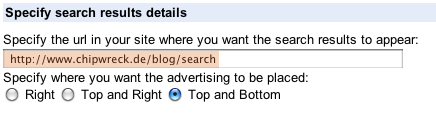
Of course the URL should be inside your blog, preferably a WordPress page.
Step 2: Get the code from Google
After setting up your cse you receive two code snippets from Google, one for the search box – another one for the results page:

Step 2: Setting up a result page
To make things easy, use a WordPress page and call it Search
, the permalink
has to match the URL you entered in the last step:

..and put the “Search results code” from Google into this page, like this for example:
...
<h2>Google search results</h2>
...
<div id="cse-search-results" style=""></div>
	..more code from google..
	<script type="text/javascript" src="http://www.google.com/afsonline/show_afs_search.js"></script>
...
Step 3: Modify the search form
Edit the WordPress theme file searchform.php
and insert the “Search box code” from Google there. So it might look similar to this snippet:
<h2 class="widgettitle">Search my blog</h2>
...
<form action="http://YOURDOMAIN/search" id="cse-search-box" name="cse-search-box">
	..more code from google..
</form>
<script type="text/javascript" src="http://www.google.com/cse/brand?form=cse-search-box&lang=en"></script>
...
Now the search widget shows the Google Search field and already is linked to the google results page.
Step 4: Redirecting the WordPress search
One thing is still to be done – the default WordPress search is still present, you could access it by calling: /search/example.
But to be consistent, we redirect this search also to the Google results page. This is a bit more complicated, so I’ll explain this a bit more detailed:
- First do a search for
example
using the Google CSE and copy the URL from the result page - Take this URL and move the search term parameter (q=..) to the end and remove the term
example
:

Your result is of course a little bit different…
Now open your main template file (index.php) and insert this code at the top, replacing the URL (inside the single quotes) by the one you created aboved:
<?php if (is_search()) :
	$result_url = 'http://YOURDOMAIN/search/?cx=partner-pub-12345..11&ie=UTF-8&sa=&siteurl=YOURDOMAIN%2F&q=';
	header('Location:'.$result_url.$s);
	exit;
endif; ?>
Make sure, there are no PHP syntax errors (keep a backup of the previous index.php..)
What’s happening here? The is_search()-function is a Template Tag from WordPress, which returns true if the user searched for something. In this case we redirect the Browser to the Google Results page and insert the search parameter from WordPress ($s) into the URL as if the user had used the searchform.
Any idea of an updated solution?
Looks like the solutions also in comments are outdatated.
There are some plugins that does this but none of then has enough reviews so we are a bit afraid to try on our customer.
We need any kind of content search, could be google or not. thank you.
You might try this plugin https://de.wordpress.org/plugins/wp-google-search/ – the source code is available which is a good sign.
better solution like I mentioned…
http://templatic.com/wordpress-tutorials/integrate-custom-google-search-engine-to-your-wordpress-site/
My post is already nearly two years old – thanks a lot for showing an updated solution!
there has to be an easier way to do this. I’ve done it creating a simple searchresult.php template and copied the search results code on that template and uploaded that template to WordPress, created a page and added to that page the default template with the code and styled it with css. It works.
Usefull Content
Hi,
Instead of redirecting you could just disable the wordpress search:
Just add this to you’re functions.php
function fb_filter_query( $query, $error = true ) {if ( is_search() ) {
$query->is_search = false;
$query->query_vars[s] = false;
$query->query[s] = false;
// to error
if ( $error == true )
$query->is_404 = true;
}
}
add_action( 'parse_query', 'fb_filter_query' );
add_filter( 'get_search_form', create_function( '$a', "return null;" ) );
great post
Thanks alot
Great post do you mind if i translate into German for our blogs readers? Thanks
No problem! Just insert a link back to the original post.
I already thought about writing and/or translating some posts in/to German – but until now I didn’t have the time.
thx in advance.
Thanks a million for this, I appreciate the info
Thanks. That really helped – especially the part about creating a page with the search code…
I do not understand “One thing is still to be done – the default WordPress search is still present, you could access it by calling: /search/example.” Where do I get example ? is it a file?
“example” is the search keyword.
I’ll try to explain it in other words: If a user (by any means) opens the URL /search/whatever the search-engine from WordPress is being called (and searches for “whatever”. This is not dramatic, but I wanted to point out how to circumvent this.
Great article! I am just starting out in all this and trying to learn more about it – resources like this article are incredibly helpful.
Geile site. Ist gebookmarked ich komm wieder :-)Es wäre tolldes öfteren solche liebevollen gestalteten page im Web zu finden.
Actually im still getting the problem, ive troubleshooted it and found out that its because – when I hide my search results page – using publish as draft – then i get this error – please could you advise on how to hard code remove the search page created for search results from the main navigation – I don’t want to select Private – else you get the “Private:Search Results” showing
Hi –
I use a custom theme, which simply doesn’t include the search results page in the navigation. So the most easy way would be to choose a theme which lets you hide pages from the navgiation..
mario
Great article! I am just starting out in all this and trying to learn more about it – resources like this article are incredibly helpful.
I like your site design. What template did you use ?
Hi –
thx! I built the template myself, CSS and WP Template creation. Maybe I’ll put up a version to download the next days.
Thanks a lot for this excellent tutorial ! I tried many other ones without any success, and this one works great !
Can I modify the Google custom search code to dwell with my site design ? Will it violate Adsense policies If I touch the custom search code ? I will just be editing CSS parameters of the search button, input field and reduce the length of the input box.
Please help !
Hi –
For my personal understanding the length and the button should not be a problem. Especially since the length of the search box can already be customized on the Google CSE site itself.
According to the Terms of Service (http://www.google.com/cse/docs/tos.html?hl=en) this is relevant for the search box:
Hope that helps – otherwise you can visit the official support forum:
http://www.google.com/support/forum/p/customsearch?hl=en
nice tutorial
Worked great for me. I had this already setup, but I never thought to redirect the existing WordPress search with a function. Thank you for this tip! I’m going to link to this tip on my website.
I tried this out on my wordpress blog – it works for Google chrome as i did all the amendments on Google chrome – but on firefox, opera and ie8 it produces the error code.
Please help i need this in my wordpress – i guess theres some variables that i need to put ?
Hi – well if you could tell me the URL of your blog and which error code it is I’d have a look..
My website http://bit.ly/96w8o6
Hi –
First: You have to create a Page in wordpress, preferably on the top level and call it “search”, so that accessing “/blog/search/” in your browser shows this page (and not a 404 like now).
Second: Then put the code for the Google search result on this page.
This should help..
Thx – all I did was to add “/” in my search form – as I had followed your instructions to a t – after adding the slash to Google giving it the direct link address its working in all browsers :) Tried in Google Chrome, Opera, Firefox and IE8 – Thanks alot!!
Actually im still getting the problem, ive troubleshooted it and found out that its because – when I hide my search results page – using publish as draft – then i get this error – please could you advise on how to hard code remove the search page created for search results from the main navigation – I don’t want to select Private – else you get the “Private:Search Results” showing
Ok i have just tried to hard code to remove my page “Search” and still no luck
I used the code
So i went and installed this plugin “Exclude Pages” and all is well
Hi – okay, nice that it works now.