

This is the Safari 5 extension for pinboard.in – not in active development.
Current version: 2.78 (Mac and Windows) | 2.91 beta (Safari 5.1 only)
Features
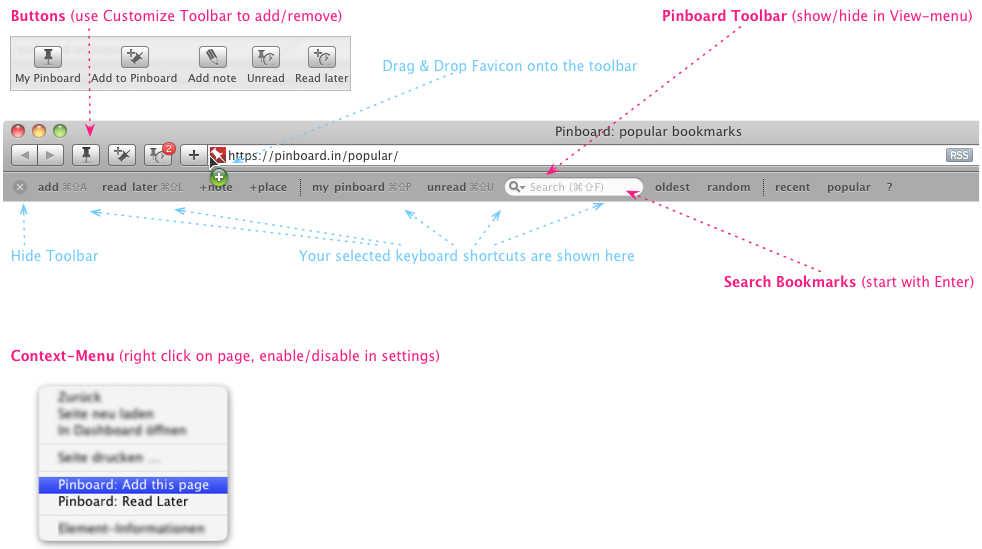
- Toolbar, Buttons, Context menu – can be separately enabled/disabled
- Add to Pinboard, read later, view/search your bookmarks, unread items
- Configurable keyboard shortcuts
- Show number of unread bookmarks as badge
- Open links and Add to Pinboard: In same tab/new tab/new window/popup
- Add via drag & drop (on the pinboard toolbar)
Download
Download Pinbar 2.91 beta (Safari 5.1+ only!) »
Quick Overview & Screenshot
Usage
You should be logged in at pinboard.in of course. The extension doesn’t access your personal information.
2.6 uses now the Pinboard-API for Number of unread links
:
– You have to login to api.pinboard.in (with your usual pinboard username/password).
– Click Save to Keychain
so the login only appears once.
How to install
- First enable Extensions (disabled by default in Safari 5.0): Enable “Develop menu” in the Advanced pane of Safari Preferences, then “Enable extensions” in the Develop menu.
- Download above & double click to install — or at extensions.apple.com)
- The toolbar can be disabled in the “View”-menu, the buttons can be added or removed by customizing the Safari toolbar.
Settings
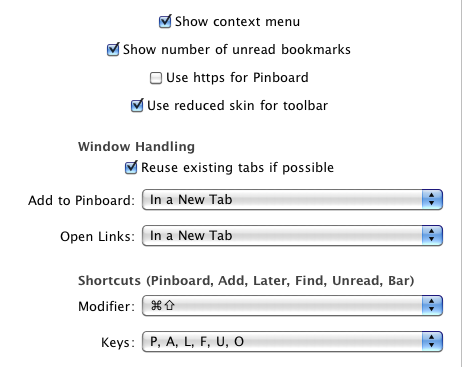
Go to Safari Preferences and click on Extensions, choose Pinbar from the list of extensions.
Show context menu – Turn the context menu on or off (shown if you right-click on a page)
Show number of unread bookmarks – Shows a badge with the number of your unread bookmarks on the “Unread”-button in the toolbar.
Use https for Pinboard – Opens Pinboard pages via https.
Use reduced skin for toolbar – Displays the toolbar in an alternate style.
Reuse existing tabs if possible – Opens your Pinboard, Unread Bookmarks and Search always in the same tab/window if the page is already open.
Window Handling – choose if “Add to pinboard” opens on the same page, in a new tab, a new window or a popup. Same goes for the links to your pinboard, recent, unread etc.
Keyboard shortcuts – A modifier and a set of keys can be chosen. The keys are responsible for “My Pinboard”, “Add current page”, “Read later”, “Search bookmarks” and “Toggle Toolbar” (in that order).
If the Pinboard toolbar is shown, you can see the keyboard shortcuts immediately on the respective buttons.
Toolbar

You can show or hide the Pinboard Toolbar in the “View”-Menu of Safari.
Buttons – should be self-explanatory: Save current page to pinboard, read later .. and so on.
Search – Enter a term in the search field and press “Enter” to search in your bookmarks. The result is shown in the browser.
“?”-Button – Short help
Drag & Drop
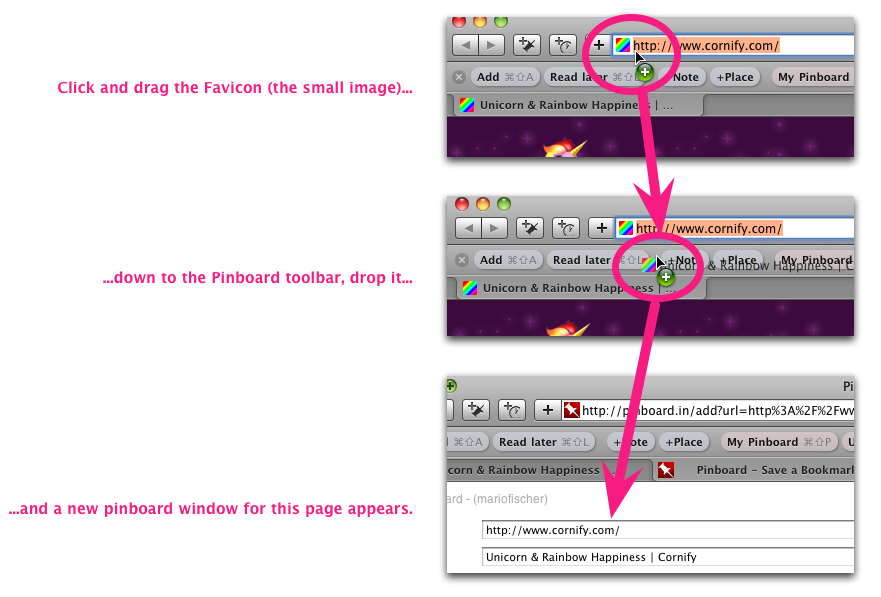
You can also drag the favicon onto the toolbar to bookmark the current page.
Buttons

Right click on the Safari toolbar and choose “Customize Toolbar” to remove or add buttons.
Context Menu
Enable/Disable in the Settings
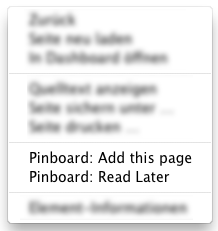
If you right-click on a page you get these two additional entries. When over a link, you can add/unread the link target.
Notes
This is my own work and is not affiliated with pinboard.in. If you have problems, wishes, suggestions- use the comment function below.
Like this?
Leave a comment, visit the ads or donate.
And you can add it to your apps at iusethis.com ».
Planned features
Configurable keyboard shortcuts for Add to Pinboard, Read Later, View Pinboard — in current beta)Unread items (Simple button)Link to this page (aka Help)Search bookmarks (Result in the browser)Maybe and cool: Add to Pinboard via layerContext menu – and make it configurableSoon: Try to bypass “extensions can’t open popups” – I’ve got a plan..Okay, let’s be honest, no one reads all this here – integrate a short documentation (layer or a page)Drag & drop of URLs (from the address bar) onto the toolbarthe bookmark button if this is possibleCheck if drag & drop on toolbar works. Works, only buttons don’t.Option to reuse existing tabs/windows for pinbar/unreadBetter Handling of esc when using searchWhen right clicking on a link, bookmarking the target would be coolRed Badges look nice – maybe the number of unread items on a buttonConfigure skinImprove context menu handling of links: In Google Reader the title is not correct. (should work in the current Beta)- Check out new Safari 5.1 features (and bugs…)
- Use the API to search/add bookmarks/handle tags and find a good UI concept for this.
What’s new? (Changelog)
2.78
Improvement: Description can be up to 2048 chars long (more is not possible, because the URI gets too long otherwise). Thanks Andrew Rosen!
2.76
Google reader support
Certificate update
2.7
Save tabset added
Icons improved
2.6
Use API for number of unread bookmarks
Code optimization
2.5
Alternate toolbar style
2.4
Number of requests greatly reduced (for the unread badge)
Prepared new features: API call, alternate toolbar design
2.3
https-Support (Enable in the preferences)
2.2
Bugfix for the bugfix for unread badge in new windows..
Dismissed the idea of alert-windows
2.1
Bugfix for unread badge in new windows
2.0
Unread button with optional badge (number of unread items)
New option: Reuse existing tabs/windows
New shortcut: Toggle toolbar
Context menu: Adding a link now add its target
Add to pinboard via keyboard or context menu now uses the selection (if present) as description.
Toolbar somewhat reordered.
Search field now uses selection and is cleared when pressing escape.
Alert if you’re trying to enable unread badge but the button ain’t visible.
Code minified + performance
1.91
Small fix
1.9
Shortcut for unread
Drag & Drop
Open in popup
Context menu (enable/disable in settings)
1.8
Search field + shortcut
Unread button
Code cleanup nr. 4879
New icons, cooler CSS
Help button
1.75
Configuration for Shortcuts
Dynamically enable Toolbar buttons
Bugfix for links not respecting setting
1.7
Keyboard Shortcuts
Code cleanup
1.6
Add to pinboard icon improved
1.5
Choose where you’d like the pinboard-links to open (same page, new tab, new window)
New toolbar icon
1.4
Now includes a custom icon
The “Add in new window/tab/same page” buttons have been replaced by a single button (“+ Pinboard”), which can be configure via the Extensions pane (Safari / Preferences / Extensions
The toolbar design has improved a lot thanks to Ian Soper (iansoper.com)
Doesn’t work now
Can you describe the differences between versions 2.78 and 2.91 beta? I installed 2.91 beta today, and I’m wondering if I should be on the lookout for any particular issues and/or if there’s any reason that I should consider using 2.78 instead. Note that I’m using Safari 9.1.3 on a Mac.
When I use the Read Later function it opens a new window instead of following the settings set in the extension. This causes a problem when Safari is in fullscreen mode. A new blank fullscreen window opens to run the javascript, but it won’t close afterwards
Thanks for the excellent extension. Regret it took me so long to discover.
Any way I can search for tags in the Search field of the Pinbar?
I tried t:daily and tag:daily with no luck.
That doesn’t work so easy unfortunately: The tag search uses a different syntax ( https://pinboard.in/u:mariofischer/t:development ) than the search function ( https://pinboard.in/search/u:mariofischer?query=development ).
OK understood.
I saw a Launchbar hint somewhere that I extended:
I added a Search Template called “Pinbar Tag” and set it to”
https://pinboard.in/u:seranki/t:*
Works like a charm!
Cool workaround :)
Thx!
Pinboard uses API tokens now. Would be good to switch to using there instead of passwords. See https://blog.pinboard.in/2012/07/api_authentication_tokens/
Hi and thanks for the information. I read about it and forgot it :) Currently I haven’t much time to update the plugin but API authentication would be the first thing I’d implement as next feature.
Hello,
I just installed your extension on Safari 5.0.6 (which I have to use, as I am currently on a PPC Mac).
It seems to be working well, except for the “Save tabset to pinboard” button. When I click on it, a new tab is opened to https://pinboard.in/tabs/show/ —but no links/tabs are on that page.
I would love to get this to work. Any ideas on troubleshooting the issue?
Thanks!
Jim
Hi –
well that’s strange, because the code for “save tabs” should (and did) work with Safari 5. It basically makes a HTTP Post to https://pinboard.in/tabs/save/ , sends the URLs of openend tabs/windows and then opens https://pinboard.in/tabs/show/
Debugging is not so easy but the first step would be to open the javascript console: Enable developer menu in Safari, then open error console in the developer menu (might be named differently, I see the German menu entries only. Or press Cmd + Alt + C). Then reload the page and click on “save tabs” and write if there’s a Javascript error somehwere.
Hope that helps or I’ll post a debug version of the plugin.
Hi Mario,
I tried what you suggested, and there are no errors listed in the Console.
I guess the next step will be the debug version.
By the way, I found this extension: https://pinboard.in/resources/safari/save_tabs
…and it does work.
I’d prefer to only use one extension, if possible.
Thanks!
Jim
Even stranger, because:
I know this extension of course, it’s the one from which I took the code to implement saveTabset(). There should be no difference between both functions…
Please try the following before I create a debug version:
– Uninstall the extension, delete Safari cache, download it again from here and install it again
– If anyhow possible, try if it works with another Safari version (another mac for example)
I uninstalled the extension, deleted the cache and restarted Safari as well. I reinstalled version 2.78 from this page.
The issue persists.
On my MacBook, which is Intel based, on Safari 6.0.5, the Save tabset button fails in the same way.
As another test, I disabled all other extensions, and still happens.
Should we proceed to the debug version?
Here it works without problems… and on another Mac also.
But: I remember this problem, I already had this error 2 years ago – in that case it was a server setting at pinboard. I’ll first ask if it’s possible that the pinboard server makes these troubles before creating a debug version..
By the way, I just tried it on Windows 7, with Safari 5.1.7, and I get the same issue. I hope that is of some help.
Just checking in to see if there are any updates.
FYI, the 2.9 beta extension is pointed to the update XML for the non-beta extension, so Safari is always suggesting I “update” back to 2.78.
Thanks –
as you might have noticed there’s not much happening with the pinboard extension – mostly because of me having lots of other stuff to do, but updating the XML link should be possible the next days, thx!
No worries, just thought I’d let you know. Out of curiosity, have you thought about open-sourcing this on GitHub? I’ve been using this extension a fair amount and would love to poke around it a bit more and see what help I can lend.
Yes indeed – the last months I thought about publishing the code several times (especially since I hadn’t enough time to continue myself).
The project is already on Bitbucket* so I’ll have to update comments, the description and could put it online. The only thing is that you need to have a (free) Apple Safari Developer account in order to test/deploy it.
(I prefer Bitbucket to Github, but maybe Github is better in this case because of the bigger community..)
Thx!
Yes, I meant Pinboard ;)
I’m glad to hear this is on your radar already, as it appears to be the only major shortcoming of the extension.
The bookmarklet already does this, so I assume it isn’t too hard. (It’s not possible to assign a keyboard shortcut to the bookmarklet, though, so using that instead isn’t such a good solution.)
I hope you also that you will consider making the suggested tags “tabable”, so that it is possible to select a number of them and add some more tags without taking your hands off the keyboard.
Thanks in advance :)
Hi. Just signed up for Pinterest, and your extension here looks great. I was missing one thing out of the gate, though: Can’t I view popular tags for a page when I bookmark it?
A nice feature in Delicious was how you would get a bunch of tags that other people had used for a page, and could pick and choose from those before adding your own.
Hi –
I assume you meant Pinboard, not Pinterest :) Your idea is defnitely good and is on my todo list, but unfortunately there’s currently not much time for working on the Safari pinboard extension. Maybe in some weeks but I can’t guarantee that.